AI Overview: To transfer Clash Royale from Android to iPhone, register a Supercell ID on the old phone, install the game on the new one, and log in with the same email and the six-digit code. The same steps work in reverse. The old 12-character “Link Device” code method belongs to an earlier era. Do this before you reset or sell the old phone.
Last Updated: October 2026
Key Points:
- Register a Supercell ID on the old phone first, then log in on the new one.
- The same steps work from Android to iPhone and from iPhone to Android.
- You need access to the email inbox, not a password.
- Write down your player tag before you start so you can check the right account loaded.
- Do not wipe the old phone until the new one shows your cards, Gems and clan.
Table of Contents
Before You Start: A Quick Checklist
The account does not live on the phone. It lives on Supercell’s servers, tied to your Supercell ID. The move is just logging in somewhere else.
- Open the old phone and confirm the game runs and has internet.
- Check you can read the email inbox you plan to use.
- Find your player tag in your profile and write it down.
- Update Clash Royale on both phones.
- Keep the old phone until the move is done.
The facts: the account lives on Supercell’s servers, the login is an email plus a code, and the move works both ways. What it means: nothing is copied between phones. Still unknown: exactly when the old Link Device menu left the game.
Why it matters: the most common failure is a typo in the email or a phone wiped too early. Both are easy to avoid.
Cross-device play is becoming normal across Supercell games, with PC added in 2023, so expect moving between devices to get simpler, probably with fewer manual codes. The negative effect: easier access also means easier theft if a login code is shared, so convenience and security will keep pulling against each other.
Transfer Your Account in Five Steps
- Register on the old phone. Open Settings, find the Supercell ID box and create one with your email. Type the six-digit code. Our guide on what Supercell ID is has the full steps.
- Install Clash Royale on the new phone. Use the App Store on iPhone or Google Play on Android.
- Open the game and choose Supercell ID log-in. It is on the loading screen or in Settings.
- Enter the same email and the new code. Wait a few minutes if it is slow.
- Check the account. Compare the name, level and player tag with what you wrote down.
Quick math: five steps, two codes at most, and about ten minutes if nothing goes wrong.
These steps are the same in both directions. Android to iPhone and iPhone to Android use the same Supercell ID.
You are not moving a file. You are signing in somewhere new.
The catch: an account only loads on one device at a time. When you log in on the new phone, the old one can be logged out.
What to Check After the Move
- Cards and levels: open your collection and compare a few cards.
- Gems and Gold: make sure the totals look right.
- Clan: you should still be in it.
- Pass Royale: it is billed by the app store, so if it looks missing, contact Support from Settings > Help and Support.
Why it matters: a missing Pass is the one thing the account move cannot always fix on its own, because the store handles the payment.
The takeaway: check four things, then wipe the old phone. Not before.
As Supercell adds more cross-platform features, transfers will likely cover more items in one place, such as subscriptions. The negative effect: until then, anything billed by Apple or Google can fall between two systems, and a player may find a missing Pass after a move.
The Old “Link Device” Method
This page used to explain a different method. You tapped Link Device, chose “This is the old device”, got a 12-character code that worked for two minutes, and typed it on the new phone. It also allowed only one link.
That belongs to the time before Supercell ID, which launched in May 2018. Current guides use Supercell ID instead, and the steps above are the safe route. We could not confirm the exact date the old menu left the game, so use Supercell ID.
Here’s the problem: many old tutorials still show Link Device screenshots. If your menu does not have it, you are not doing anything wrong.
| Deck | Cards | Avg elixir | Win rate (sample) |
| Log Bait deck | 3.2 | 63.0% (2,900 battles) |

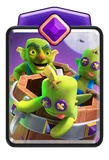


Try it yourself: open the Clash Royale Deck Builder with a Log Bait deck featuring Evo Knight and Evo Goblin Barrel, 63.0% in the tracker sample (about 2,900 battles), already loaded. After the move, check your deck and play a few matches.
If Something Goes Wrong
The Code Never Arrives
Check the spam folder, confirm the email is spelled right, and wait a few minutes before asking for another code.
The move: wait a few minutes, check spam, then ask for one new code.
The Wrong Account Loads
You may be using a different email than you thought. Log out and try the other addresses you use. Read the Already Linked problem for the usual causes.
The catch: people often own two emails and register different ones on different phones. Try each one before you write to support.
You Lost Access to the Email
Open Help and Support in Settings. The support team asks for details such as nickname, level, player tag and clan, according to Game Rant’s 2024 guide.
For Google Play trouble on Android, see Google Play sign-in fixes.
Go deeper: Related reading: the Supercell ID guide, the Facebook login guide and the beginner strategy guide. For a custom list, the Clash Royale Deck Builder calculates the average cost as each card goes in.
Frequently Asked Questions
How do you transfer Clash Royale from Android to iPhone?
Register a Supercell ID on Android, then log in with it on the iPhone.
Can you transfer from iPhone to Android?
Yes, with the same steps.
Will you lose your progress?
Not if the Supercell ID is registered first. The account lives on Supercell’s servers.
Is there still a Link Device code?
Current guides use Supercell ID, which is the safe route.
Does Pass Royale move with the account?
The account moves. Billing is handled by Apple or Google, so check it afterward and contact Support if it looks wrong.
Can you use both phones at once?
Not at the same time. Logging in on one device logs out the other.
The Bottom Line
The takeaway: Supercell ID first, new phone second, old phone last.
What to watch next: if Supercell changes the log-in screen, menu names may shift, but the order stays the same: register, install, log in, check.
A move between stores will probably stay a login, not a file copy, as Supercell keeps accounts in the cloud. The negative effect: the account becomes only as safe as the email behind it, so players with weak email passwords carry the risk.
Ready to play? Build your first deck with our step-by-step Clash Royale Deck Builder guide.
Sources
Researched from the following (no links, listed for transparency):
- Supercell, Clash Royale blog: “Sign Up! Stay Safe!” (May 24, 2018, the launch of Supercell ID)
- Clash Ninja, “What is Supercell ID” guide (register and log-in steps)
- Game Rant, how to recover a lost Clash Royale account (April 17, 2024)
- Supercell news: “Clash Games Live on PC” (October 23, 2023: Google Play Games beta, Windows only, Supercell ID, one device at a time)
- The original clash.world tutorials (2016-2022), used only for the “then” comparison and for the community fixes labelled as such